- Make sure Pete Bertrand has shared the TSSK Ski Cabin Calendar with
your Google Calendar account. (see: Google
Calendar Account instructions).
- Click on the "Cabin Calendar at Google Calendar" button
on the tssk.ski-cabin.com homepage or goto http://calendar.google.com
- Login with your Google Calendar account or Gmail account.
( If you don't already have a Google Calendar account or Gmail account, you can find instructions here on how to get an account.)
- Once you have successfully logged into Google Calendar, set the default
view to "Month" by clicking on "Settings" in the
upper right hand corner.
.

- Then for the default view select "Month" and click "Save"
at the bottom of the page.
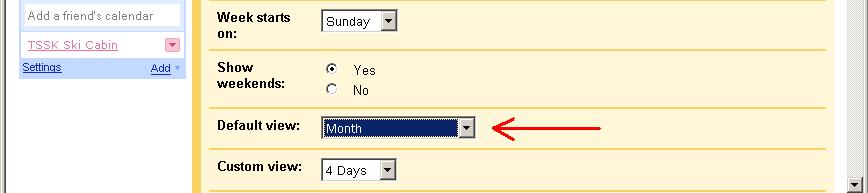
Once you have completed steps 4 and 5, you don't need to do them the next time you log in. Your view should display the calandar as monthly.
- Then find the "TSSK Ski Cabin" calendar under "Other
Calendars"
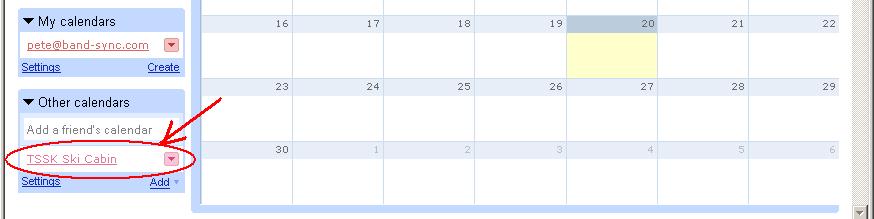
If this is not there, then email a request to pete_bertrand@yahoo.com to invite you to view the calendar.
- If "TSSK Ski Cabin" is not highlighted, you are *not* viewing
the calendar. Click on this to view the Ski Cabin calender.
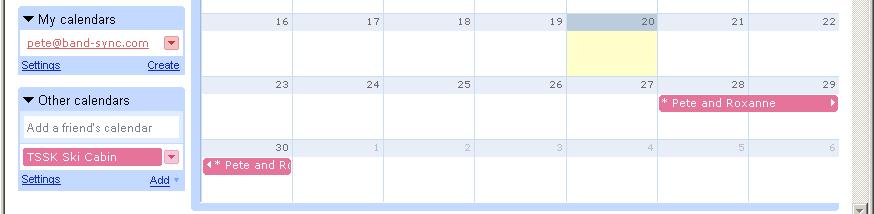
You can now see the Ski Cabin calender is highlighted and now you see above that Pete and Roxanne are going up to the cabin from Friday the 28th through Sunday the 30th.
NOTE: It is extremely important that the TSSK Ski Cabin calender be selected and highlighted as in the picture above. If it is not, you will not be able to see who has scheduled the cabin and the entries you make may not be saved into the TSSK Ski Cabin calendar.
- Once the TSSK Ski Cabin is selected, you can see who is currently
planning on going to the cabin. Before you sign your name up, make sure
there is enough room in the cabin. I belive the cabin can sleep 10 comfortably.
If the cabin looks full and if you are in doubt of many beds are still
available, you must call the people who have already
scheduled to see who is sharing a bed and how many beds are available.
Do not rely on email to confirm if beds are available. People do not
alway read email every day. You must call all the
others signed up to confirm there is space for you, this is how it was
done in the past and works best.
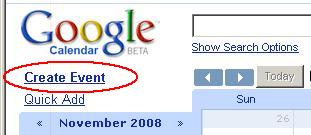
- Now you are ready to schedule the days at the cabin. Click on the
"Create Event" link in the top left hand corner of the page.
- Next enter in the names of eveyone who is going up. (So we have an
accurate count).
Put a '*' in front of the names. For example, if Bob and Jane are going up, then type "* Bob and Jane" in the "What" field.
The '*' indicates that this is tentatively scheduled.
A '*' must be used if you are scheduling more than 2 days in advance. (More details on this below).
If you are going to go up within 2 days, enter a '!' to indicate you are definately going up.
Then check the "All day" checkbox and enter in the dates you want to go for.
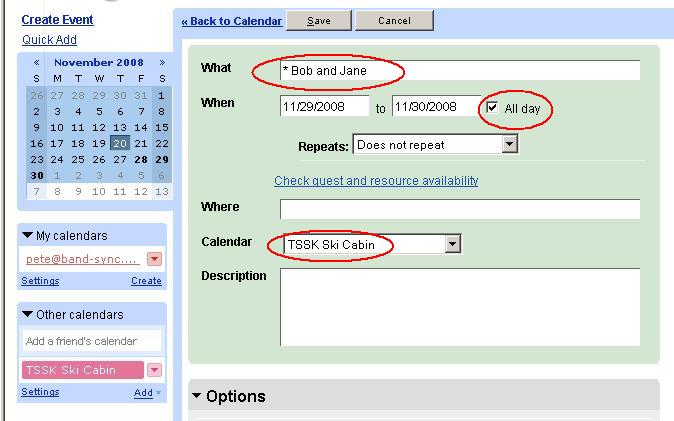
NOTE: Make sure the calendar is set to "TSSK Ski Cabin", if it is not select it from the drop-down.
If this is not selected correctly, your entry will not go into the Ski Cabin calendar.
Remember to click on the "Save" button at the top of the form when you are done.
- You should now see the date you just entered on the calendar. In this
example, we just added "Bob and Jane"

- Congratulations! You just scheduled your days at the cabin.
Verify again that the "TSSK Ski Cabin" calendar is highlighted and that your dates are showing on the calendar.
- Confirming you are going up.
- If you schedule the cabin more than 2 days in advance, please put
a '*' in front of your name.
This means you are tentatively planning on going on those days. - Then, two days before you go, if you are still going, Login to the
calendar, click on your entry and change the '*' to a '!' and save the
change.
This will confirm you are definately going up.

- If you don't know 2 days before, but still might go up, leave the '*'.
- If your plans have changed and you are not going up, then click on the entry to show the details and then click the delete button to delete it.
- If at any time you have scheduled a date in the future and you know
your plans have changed, then don't wait until 2 days before, just delete
the entry as soon as you know so others can see the cabin is available.
If you have any problems accessing the calendar or making entries, please email pete_bertrand@yahoo.com.
* THINK SNOW *